The Private PDF Editor
for iPhone & iPad
Sign, merge, split, scan, and password-protect PDFs without uploading them anywhere. Everything happens on your device — offline, with no account and no tracking.
Free download · No ads · No tracking · Works offline
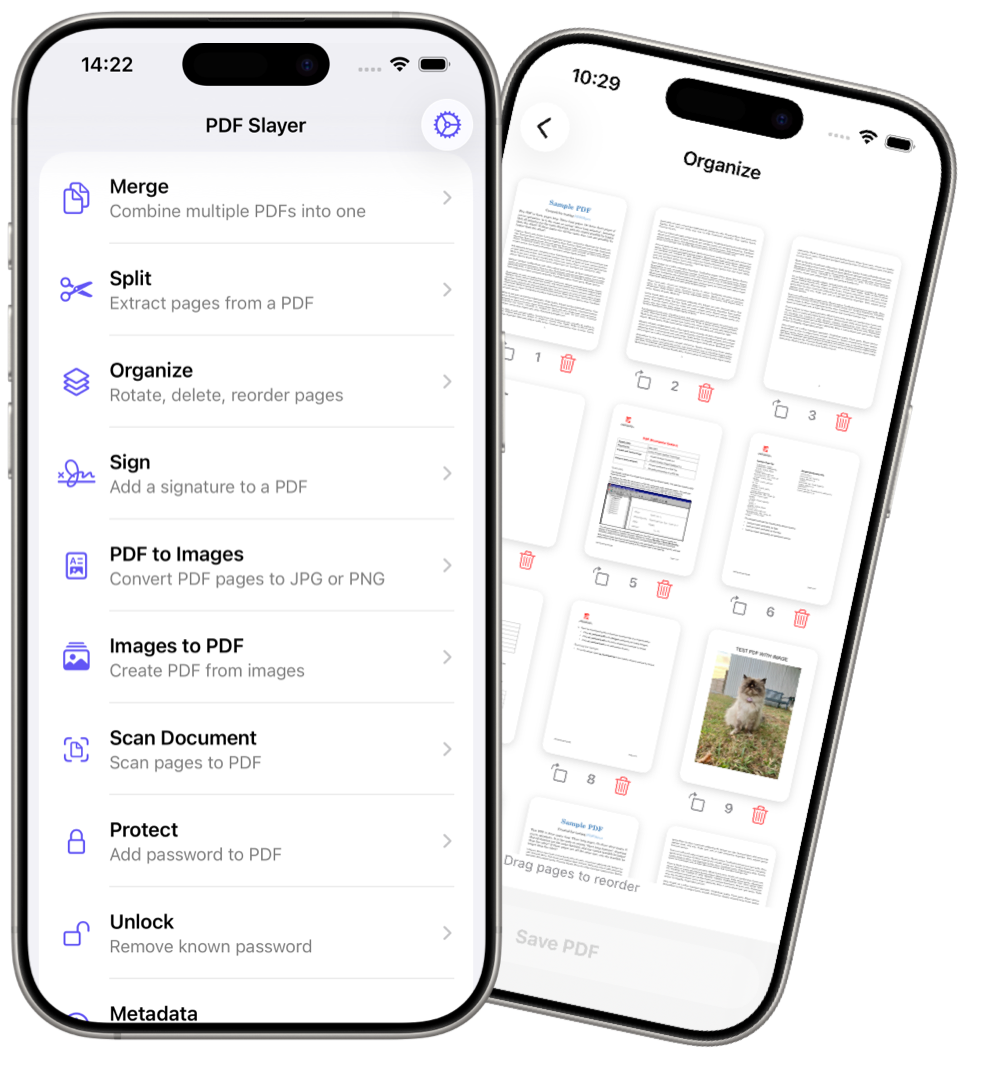
Every PDF tool you need, on your iPhone
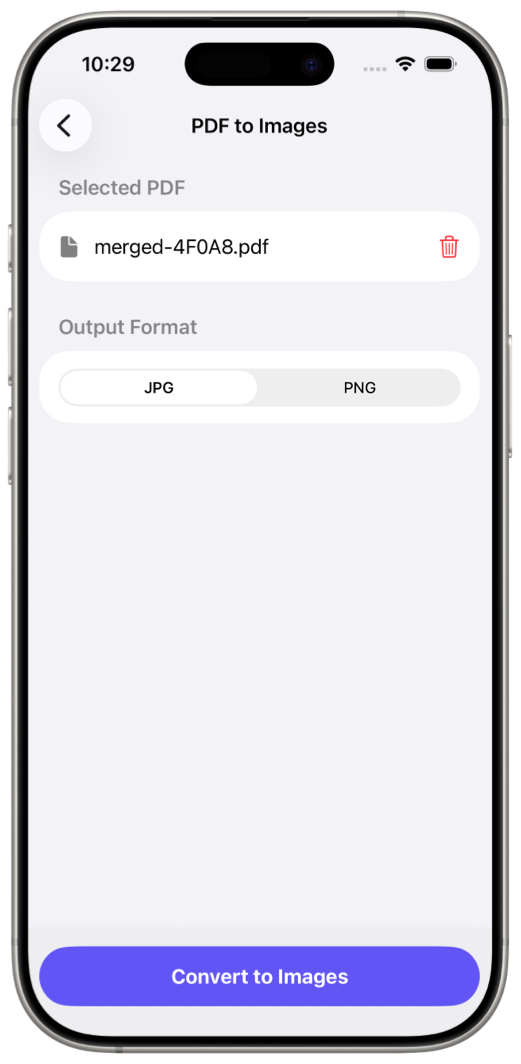
Sign, merge, split, organize, scan, convert, and protect PDF documents — without ever uploading them.
Sign PDFs
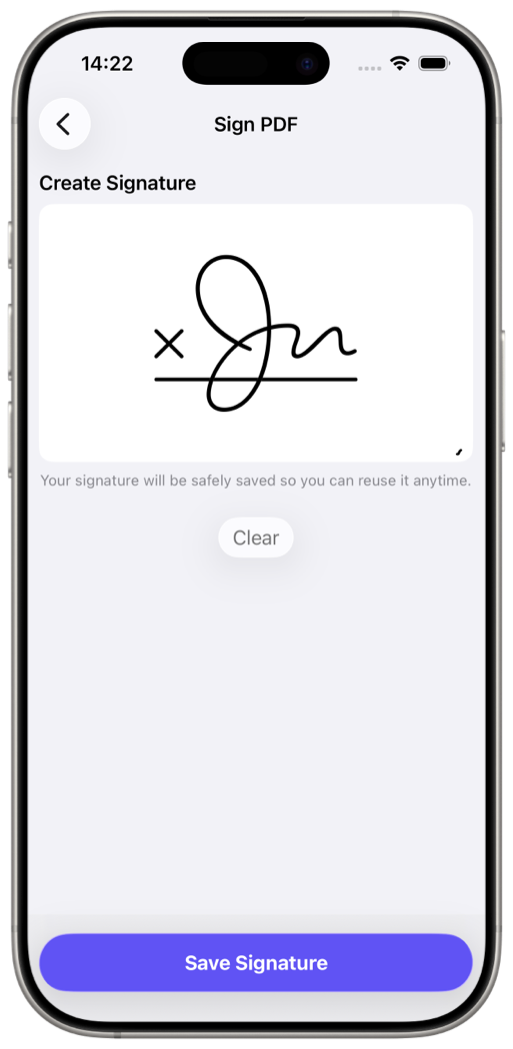
Draw a signature with your finger or Apple Pencil, place it on any page, and save it for reuse.
Learn how →Simple, intuitive design
A native iOS app that works the way you expect.
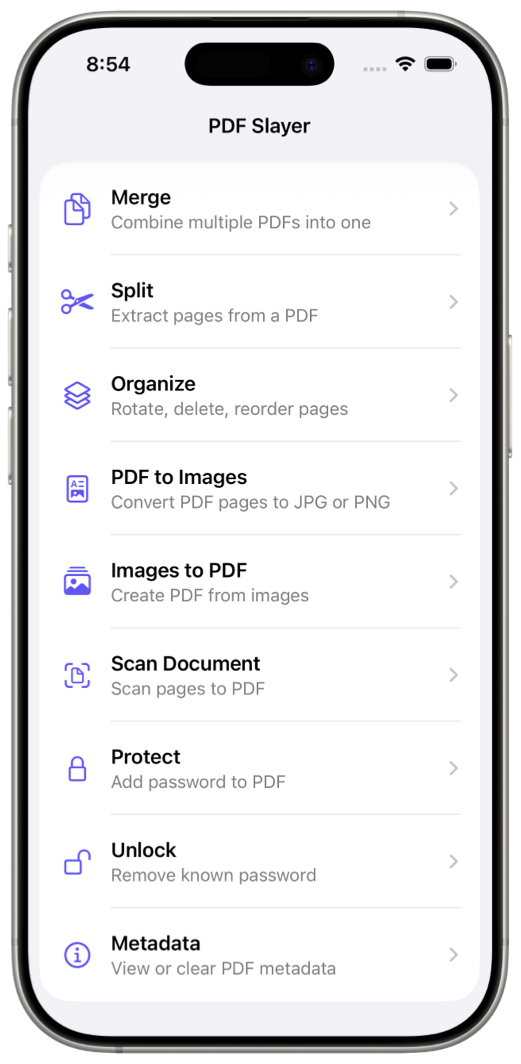
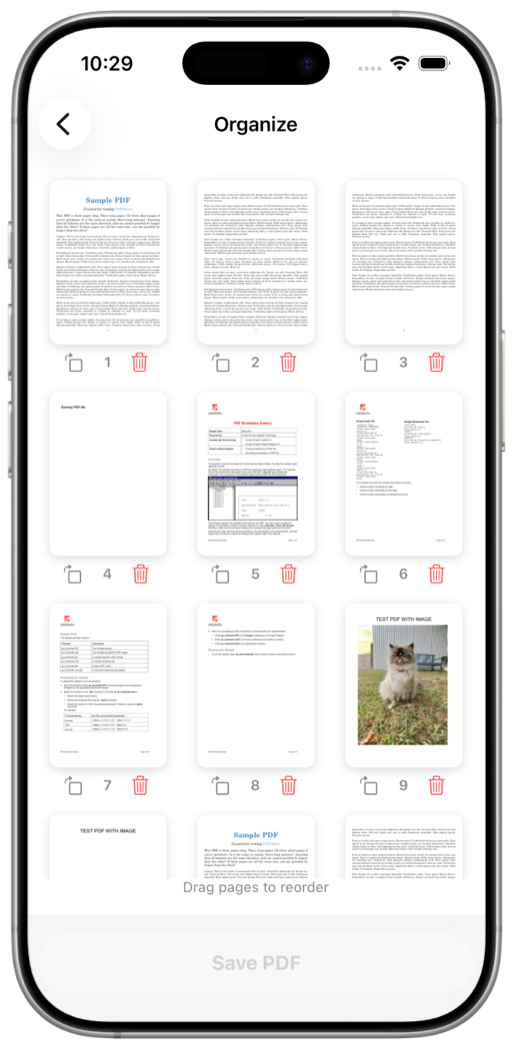
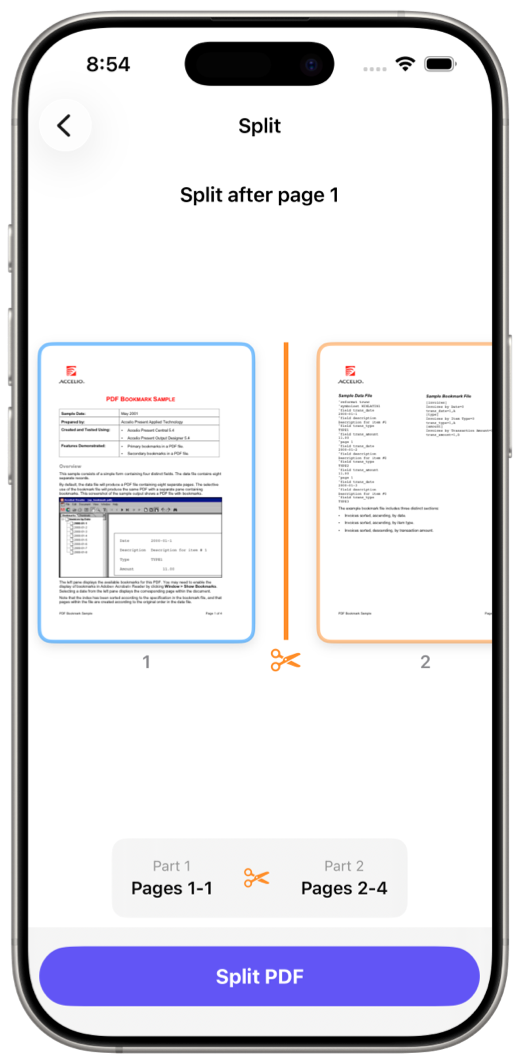
From inbox to signed in under a minute
No account setup, no learning curve. Three steps, all on your device.
Import any PDF
Open files from the Files app or Photos, scan paper with your camera, or send a PDF to PDF Slayer from any app via the Share sheet.
Edit on your device
Sign, merge, split, reorder, rotate, convert, protect, or unlock. Every operation runs on your iPhone — it even works in airplane mode.
Save & share privately
Your finished PDF is saved locally. It only leaves your device when you choose to share it — never before, never to our servers.
Your PDFs stay on your iPhone. Always.
Most PDF apps and every "free online PDF editor" upload your documents to cloud servers. PDF Slayer is fundamentally different.
Signing, merging, splitting, converting, encrypting — it all happens entirely on your device. No internet required. No data transmitted. Ever.
Works 100% Offline
Every feature works in airplane mode. That’s the proof.
No Cloud Uploads
Your documents never leave your device.
Zero Tracking
No analytics, no telemetry, no data collection.
How to do anything with a PDF on iPhone
Step-by-step guides for the tasks people actually search for — each one done privately, on your device.
How to Sign a PDF on iPhone (Free, Offline, No Account)
Draw a signature with your finger or Apple Pencil and place it on any page — no Adobe or DocuSign needed.
Read the guide →How to Merge PDF Files on iPhone (Combine PDFs into One)
Combine multiple PDFs on iPhone with drag-to-reorder — no computer and no online merger needed.
Read the guide →How to Scan a Document to PDF on iPhone
Turn multi-page paper documents into clean PDFs with your iPhone camera — then sign or merge them.
Read the guide →How to Password Protect a PDF on iPhone
Add AES encryption and permission controls before a sensitive file leaves your phone.
Read the guide →How to Remove a Password from a PDF on iPhone (Unlock PDF)
Remove protection from PDFs you have the password for — no more retyping it for every bank statement.
Read the guide →How to Edit PDFs Offline on iPhone (No Cloud, No Uploads)
Why "free online PDF editors" upload your files — and how to keep contracts and statements on your device.
Read the guide →Frequently asked questions
How do I sign a PDF on my iPhone for free?
Open the PDF in PDF Slayer, tap Sign, draw your signature with your finger or Apple Pencil, place it on the page, and save. No Adobe, no DocuSign, no account — and the file never leaves your phone.
Learn more →Can I edit PDFs without uploading them to the cloud?
Yes. PDF Slayer processes everything on your device — it even works in airplane mode. Online PDF editors upload your files to their servers; PDF Slayer never does.
Learn more →How do I combine multiple PDF files into one on iPhone?
Use the Merge tool: add your PDFs, drag them into order, and tap Merge. The combined file is created on your iPhone in seconds.
Learn more →How do I scan a paper document to PDF with my iPhone?
Open the Scan tool and capture each page with your camera. Multi-page scans become a single PDF you can sign, merge, or protect — all in the same app.
Learn more →How do I convert photos to a PDF on iPhone?
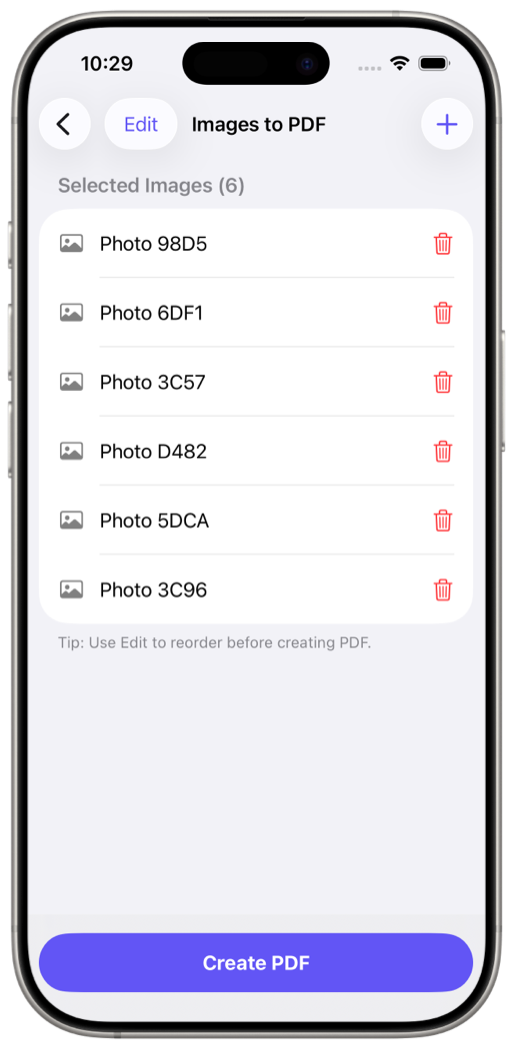
Choose Images to PDF, pick photos from your library or Files, arrange the order, and convert. Each image becomes a page in one PDF.
Learn more →How do I password-protect a PDF before sending it?
Open the file, choose Password Protect, set a password and permissions, and save. The PDF is AES-encrypted on your device and stays locked wherever you send it.
Learn more →How do I remove a password from a PDF (like a bank statement)?
Open the locked PDF, enter its current password, choose Unlock, and save an unprotected copy. You must know the password — PDF Slayer removes protection, it doesn’t crack it.
Learn more →How do I delete or rearrange pages in a PDF on iPhone?
Open the Organize tool to see every page in a grid. Select pages to delete, drag to reorder, rotate sideways ones, and save.
Learn more →Does PDF Slayer work offline?
Completely. Every feature — signing, merging, splitting, scanning, encrypting — runs on your iPhone with no internet connection. That’s also the proof nothing is uploaded.
Learn more →What hidden data does a PDF contain, and can I remove it?
PDFs often embed the author’s name, the software used, and timestamps. PDF Slayer shows every metadata field and erases them before you share the file.
Learn more →Take control of your PDFs
Download PDF Slayer free and sign, edit, scan, and protect PDFs the private way — 100% on your iPhone.
Download on App StoreNo account required · Works offline · Nothing uploaded, ever